
Two-minute demo
You be the customer. Then you be the kitchen.
Nothing is charged and nothing is installed. Do the four steps in order; each one takes about thirty seconds.
-
Step 1
Scan the table card with your phone
This is the card that sits on every table. Point your phone's camera at it and tap the link that pops up. You'll be at Table 4 of Hardware Lane Coffee.
No phone handy? Open the menu in a new tab instead.
You're already on a phone, so you can't scan this one. Tap here to open the menu, then come back to this page on a computer for the kitchen part.
Table 4
Scan to see the menu & order
-
Step 2
Order something on your phone
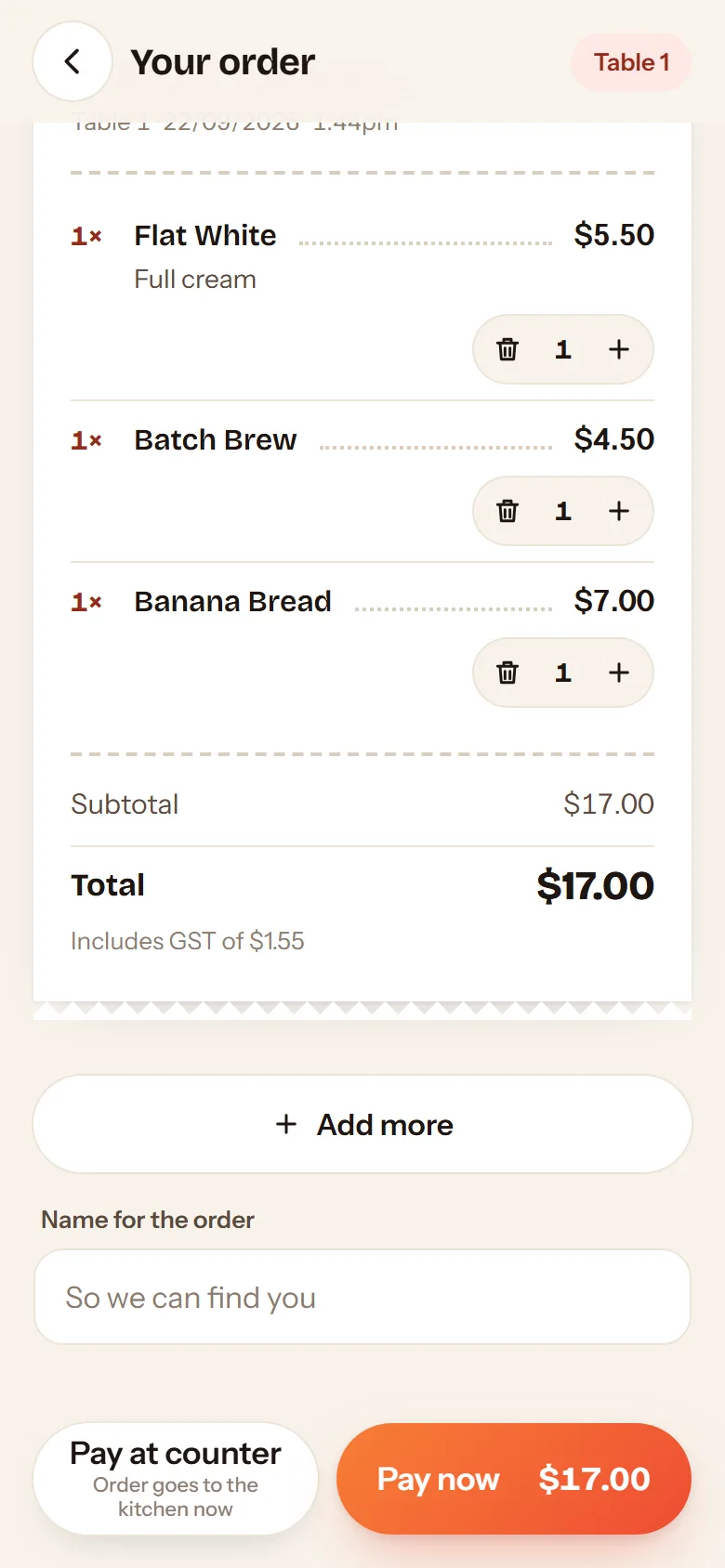
Tap a dish to choose options, or the plus to add it straight away. Then tap View order at the bottom and choose Pay at counter. On the bar demo, choose Pay now; it's a pretend payment.
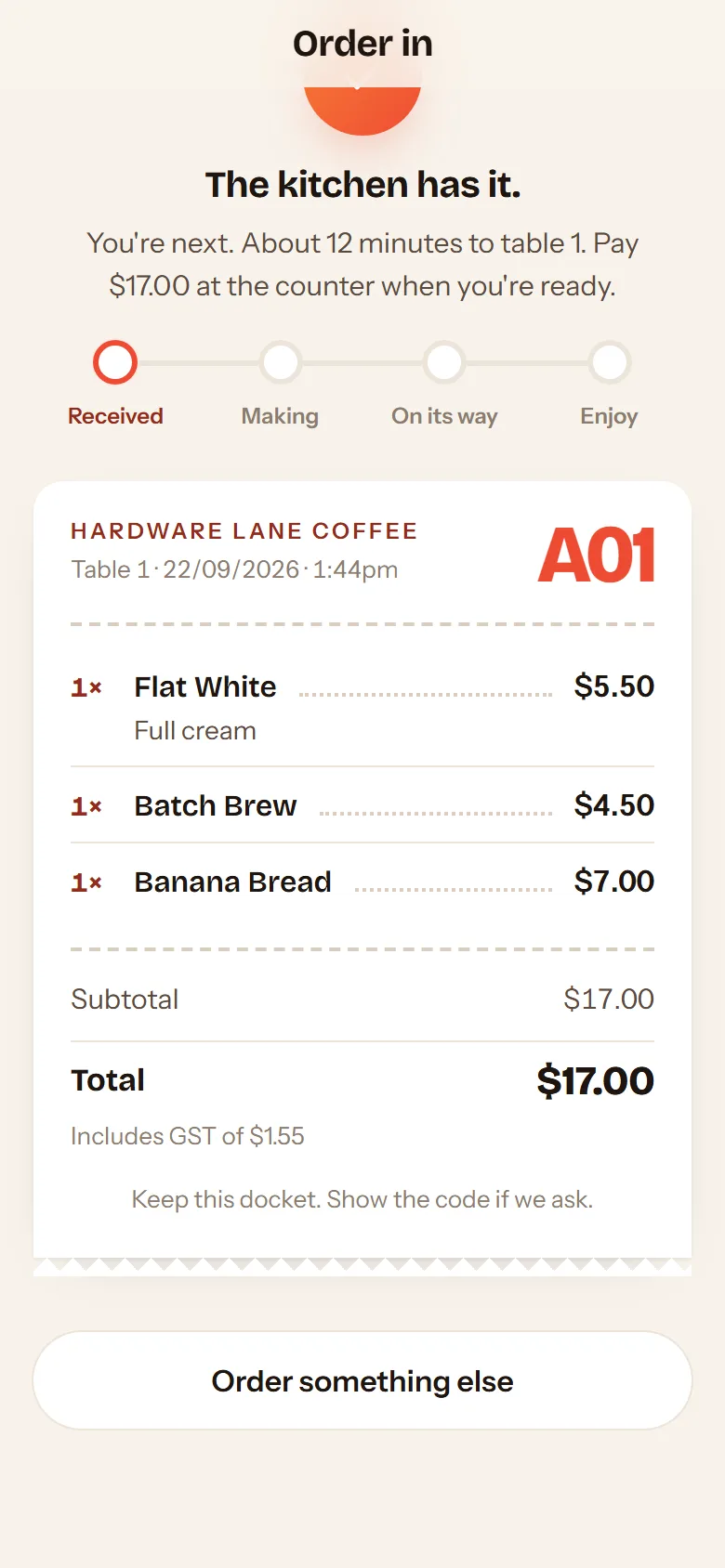
Your phone then shows the order's code, like A01, and a tracker. Keep it open.
-
Step 3
Open the kitchen screen on this computer
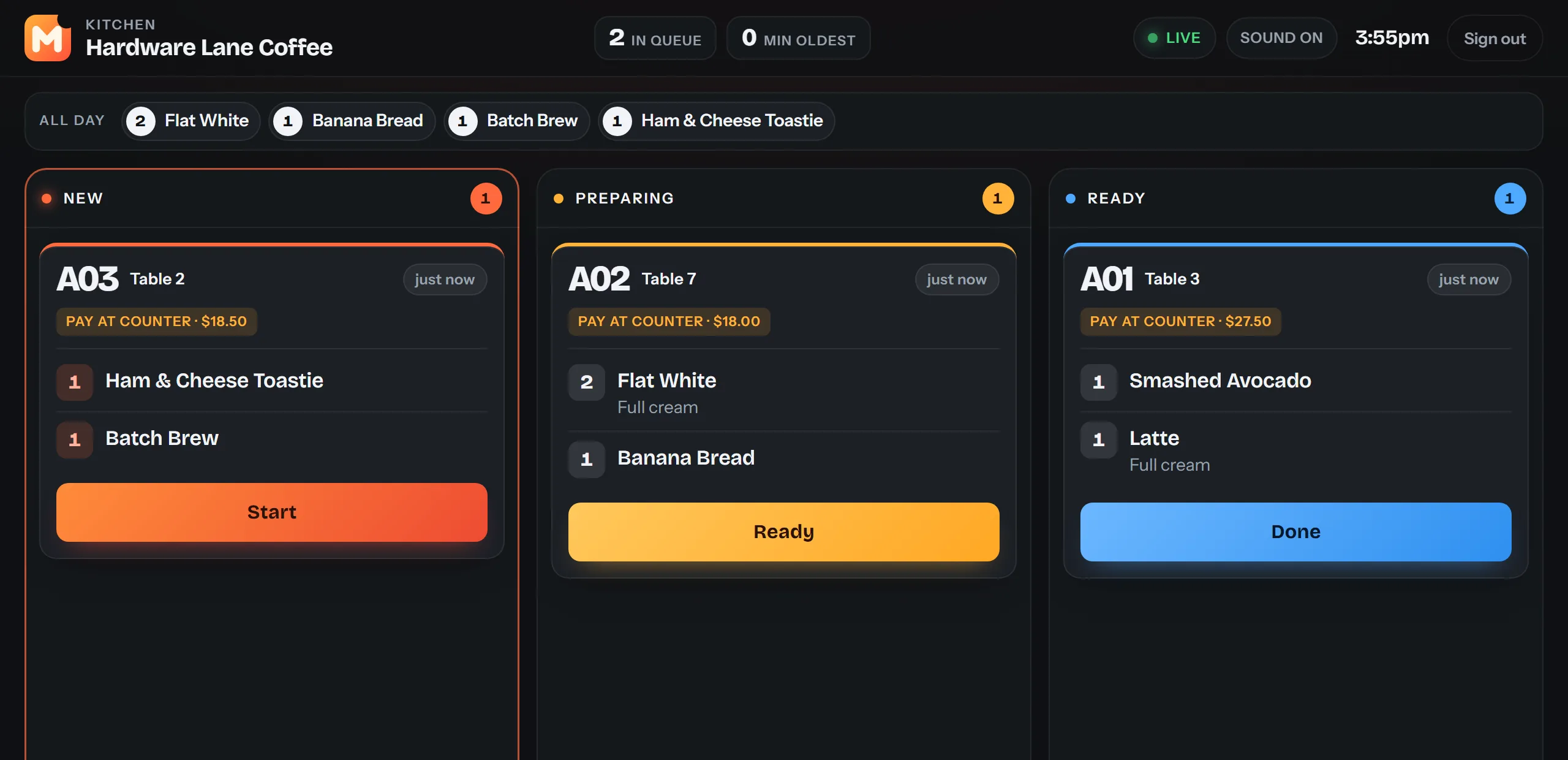
This is what the venue sees on a tablet by the pass. It opens already signed in to the demo venue. Your order is on the New rail, and it landed there about a second after you sent it.
Open the kitchen screenTap the orange banner once so it can ring for new orders.
-
Step 4
Move the order along and watch your phone
On the kitchen screen tap Start, then Ready, then Done. Each tap updates the tracker on your phone within a couple of seconds: Making, On its way, Enjoy.
Bumped it too early? The Done chip under the Ready rail brings it back.
That's the whole product.
Free set-up, nothing monthly, 1% of orders through the table cards. Want it on your own tables?